
These BigBlueButton tutorials show you how to run meetings, classes and training on your KJHosting video conferencing service.
Click on the playlist for quick selection of helpful videos
BigBlueButton tutorials: quick-start guide
Prefer to read rather than watch? Here are the essentials from the BigBlueButton tutorials in the playlist above.
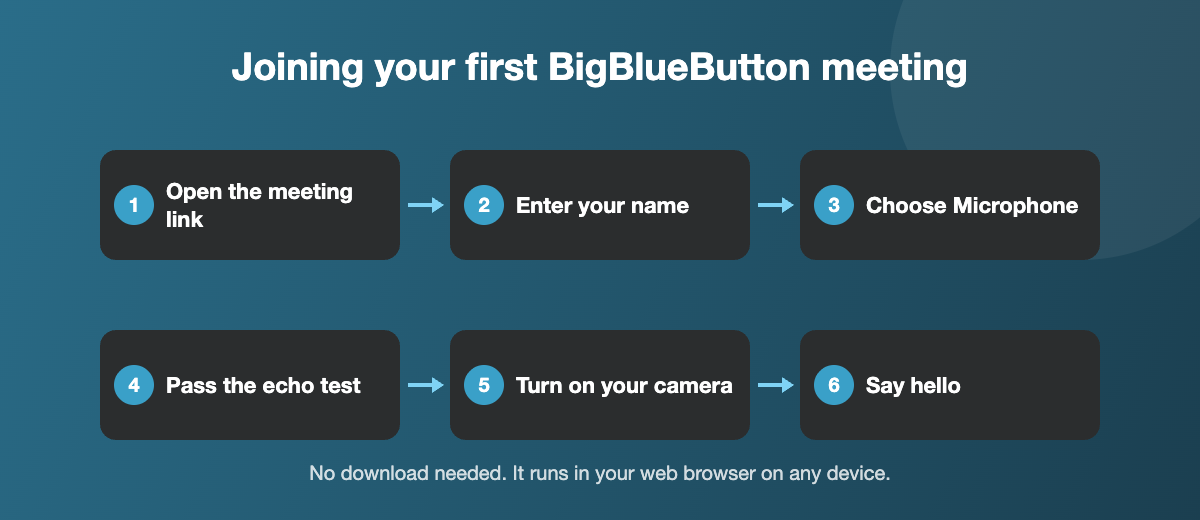
Join with working audio
- Open the meeting link in a web browser such as Chrome, Edge, Firefox or Safari. There is nothing to install.
- Choose Microphone if you want to speak, or Listen only if you just want to hear.
- Allow your browser to use the microphone and camera when it asks.
- Complete the echo test. If you cannot hear yourself, check the right microphone and speakers are selected.
Present to your audience
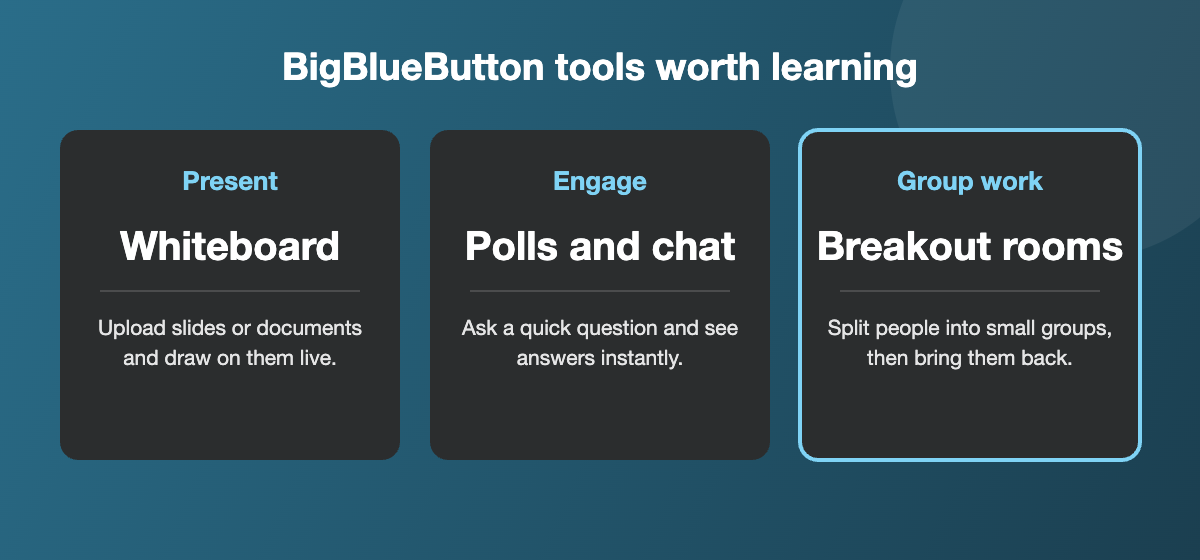
- As presenter, upload a PDF, PowerPoint, Word or Excel file and step through it slide by slide.
- Use the whiteboard tools to draw, highlight or type on your slides as you talk.
- Share your screen to show a website, a spreadsheet or any app on your computer.
Keep people involved
- Run a quick poll and show the results to everyone.
- Use public chat for questions, or private chat for one-to-one messages.
- Ask people to raise their hand, so everyone gets a turn to speak.
- Create breakout rooms for small group work, then bring everyone back together.
Record your session
If recording is turned on for your room, start it when you are ready, so people who missed the session can watch it later. Let participants know at the start if you are recording.
Tips for a smooth session
- Test before the day. Join your room ten minutes early to check your microphone, camera and slides.
- Use a headset. Headphones with a microphone stop echo and make you much easier to hear.
- Mind your connection. Sit close to your Wi-Fi router or use a cable, and close apps that use a lot of internet, such as cloud backups or video streaming.
- Turn cameras off if the sound drops. Video uses the most bandwidth, so switching it off often fixes choppy audio for everyone.
- Ask people to mute when they are not speaking, to cut background noise.
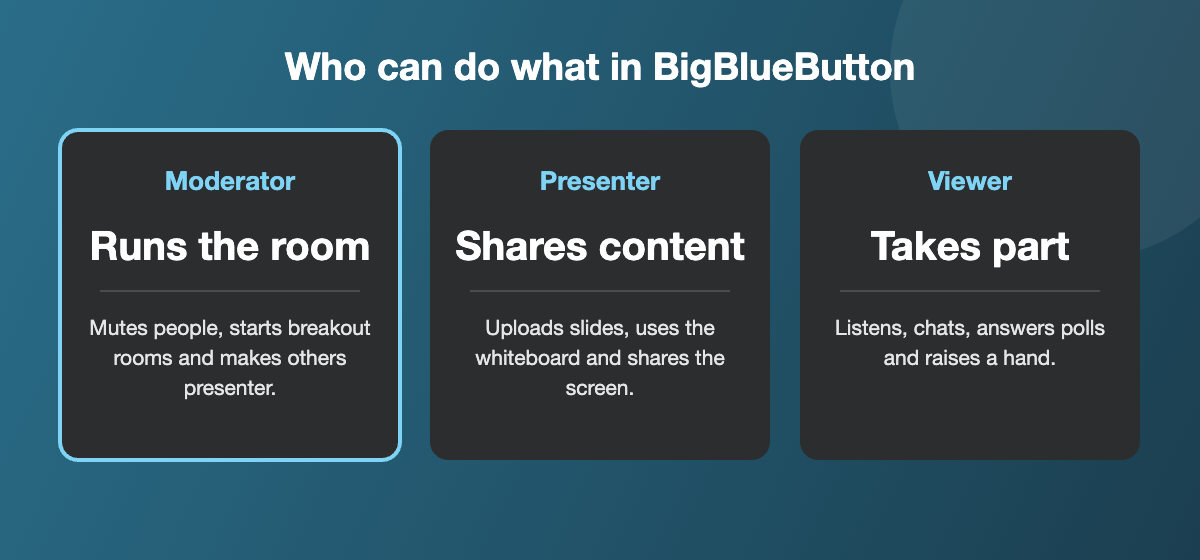
- Bring a helper. For larger groups, make a colleague a moderator so they can manage chat, breakout rooms and latecomers while you present.
- Share the agenda in the chat at the start, so everyone knows what to expect and when there will be time for questions.
The official BigBlueButton documentation covers every feature in depth. To set up video conferencing for your business or school, see our video conferencing page.
BigBlueButton tutorials questions
No. BigBlueButton runs in a web browser on computers, tablets and phones, so people just open the link you send them.
Check you joined with Microphone, not Listen only, that your browser has permission to use the microphone, and that you are not muted. Leaving and rejoining the audio often fixes it.
A recent version of Chrome, Edge, Firefox or Safari works well. Keep your browser up to date for the best sound and video.
Yes. It was built for teaching, with breakout rooms, polls, a shared whiteboard and hand raising. These BigBlueButton tutorials are a good place for new teachers to start.
Related: Video conferencing · All help guides
Need a hand? Contact us and we will help.