
It's as easy as 1,2,3.
This email configuration guide gives you the settings to connect your KJHosting email to any app on your computer, phone or tablet.
(Change yourdomain.xyz and [email protected] to your user and domain name.)
Webmail:
https://webmail.yourdomain.xyz
Username: Your full email address e.g. [email protected]
Password: Your password
Email clients such as Outlook or Apple Mail
Please note there is an infinite number of email clients available but a combination of the settings below should work in the vast majority of cases.
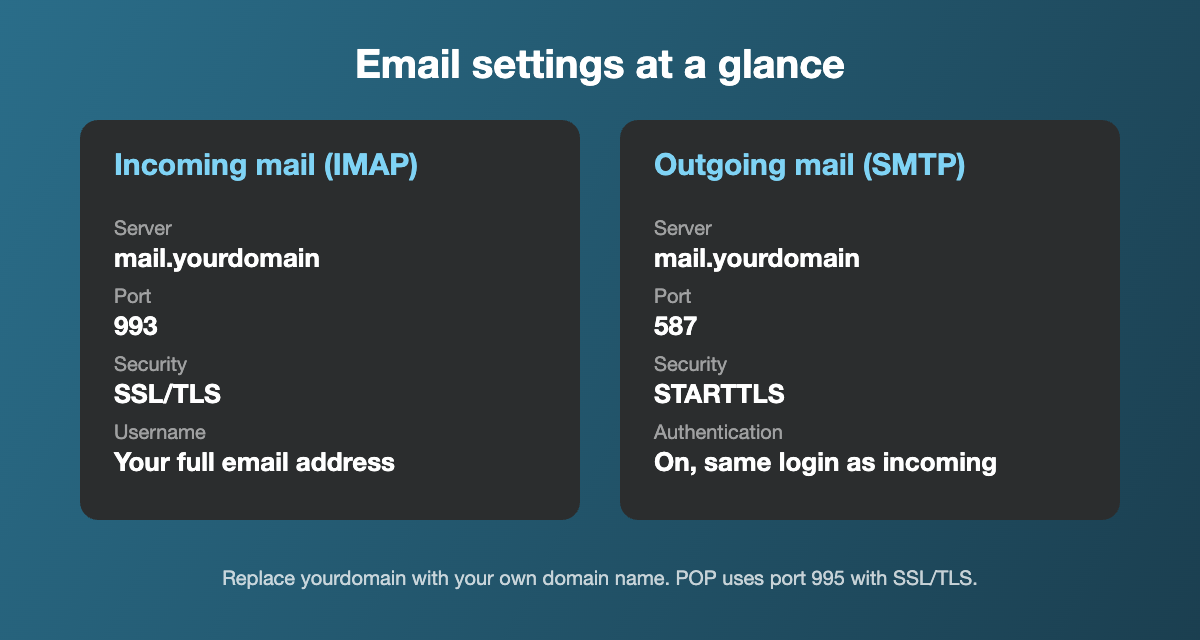
POP/IMAP Server: mail.yourdomain.xyz – Port 993 (IMAP) / Port 995 (POP) – SSL/TLS
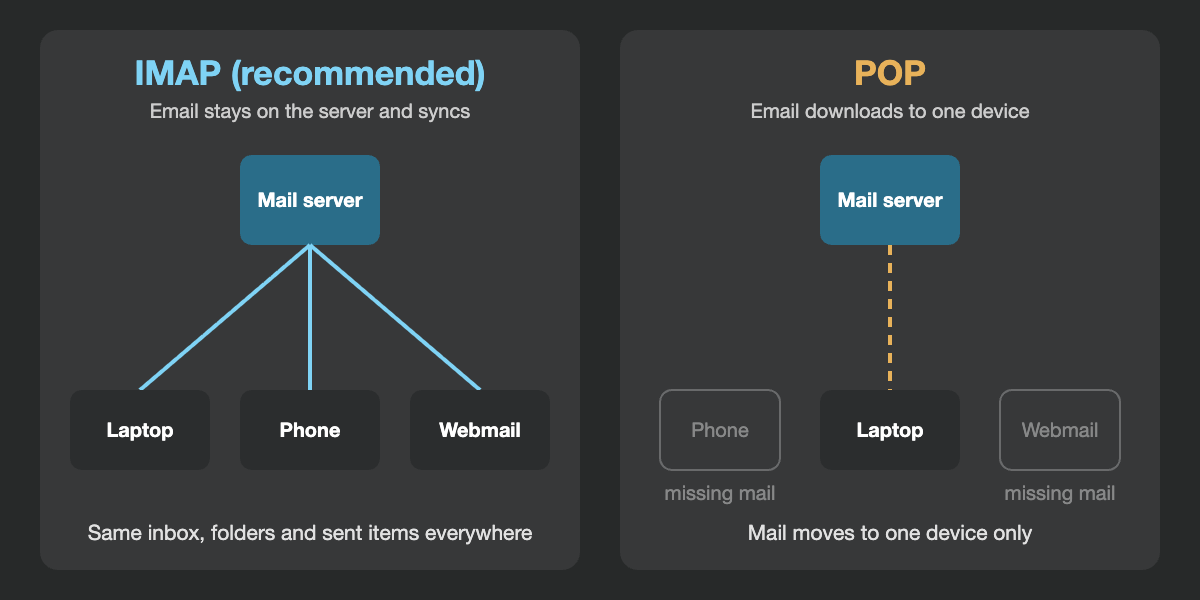
Note: using imap will create the best sync experience across web and one or more devices. POP is an older technology and has problematic syncing if you are using multiple interfaces.
SMTP Server: mail.yourdomain.xyz – Port 587 – STARTTLS / TLS
Username: [email protected]
Password: Your password
Email configuration troubleshooting
- Use your full email address as the username, not just the part before the @.
- Check the server name. It should be mail. followed by your own domain, with the ports and security exactly as shown above.
- Can receive but not send? Turn on My outgoing server (SMTP) requires authentication and use the same username and password as for incoming mail.
- Use IMAP, not POP, if you read email on more than one device, so your messages, folders and sent items stay in sync.
- Seeing a certificate warning? Check the server name for typos before you accept anything.
For app-specific steps, see Microsoft’s Outlook help or Apple’s Mail for Mac guide. Still stuck? Start a Remote Assistance session and we will set it up with you.
Email setup in popular apps
Menu names change a little between versions, but the email setup steps are much the same. In every app, choose IMAP and enter the IMAP settings shown above.
- Outlook for Windows or Mac: choose Add Account, enter your email address, then pick the option to set up your account manually and select IMAP.
- Apple Mail on a Mac: open Mail, choose Add Account, then Other Mail Account. If Mail cannot verify the account, enter mail.yourdomain as the incoming and outgoing server.
- iPhone and iPad: follow our iPhone and iPad email configuration guide.
- Outlook on your phone: follow our Outlook mobile guide.
- Gmail app on Android: add another account, choose Other, enter your email address, select Personal (IMAP), then enter your password and the server settings.
- Thunderbird: add a mail account, choose to configure it manually, and enter IMAP on port 993 with SSL/TLS and SMTP on port 587 with STARTTLS. See Thunderbird support for more help.
Once your email configuration is done, send yourself a test message and reply to it, to check that both incoming and outgoing mail work.
Email configuration questions
Use IMAP. It keeps your email on the server, so read messages, folders and sent items match on every device. POP downloads messages to one device and can remove them from the server, which causes problems if you also use your phone or webmail.
Incoming: mail.yourdomain with port 993 for IMAP or 995 for POP, using SSL/TLS. Outgoing (SMTP): mail.yourdomain with port 587, using STARTTLS. Your username is your full email address.
Usually the outgoing server is not set to require authentication, or the wrong port is used. Turn on SMTP authentication, use port 587 with STARTTLS, and enter your full email address and password.
Yes. Go to webmail followed by your domain, as shown at the top of this guide, and log in with your full email address and password.
Contact us and we will help you reset it securely after checking the request comes from you.
Related: Business email · All email, calendar and contacts guides
Need a hand? Contact us and we will help.