
3CX
If we have set you up to use 3CX click below for a complete manual on using your 3CX/PBX system
This guide covers the basics of using 3CX, the app and phone system some KJHosting clients use for their cloud phone system.
Note you will be leaving the KJHosting website – come back for specific help on your personal system.
Using 3CX: the basics
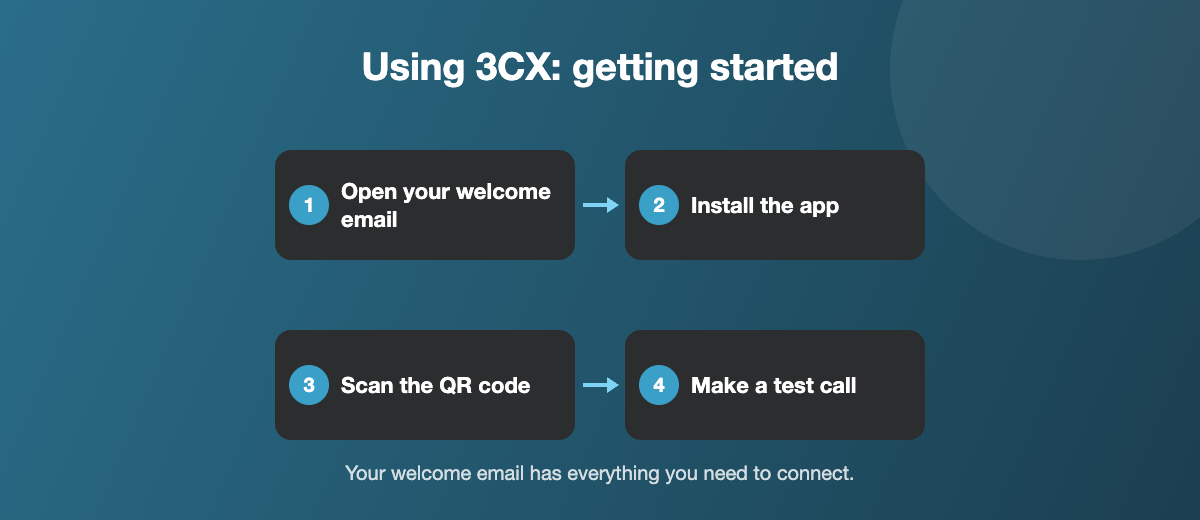
Get connected
- Open your welcome email. When we set up your extension, you receive an email with your login details and a QR code.
- Install the app on your phone from the App Store or Google Play, or use the web client in your browser on a computer.
- Scan the QR code from the welcome email with the app. It loads your extension automatically, with nothing to type.
- Make a test call to a colleague, and ask them to call you back to check incoming calls ring.
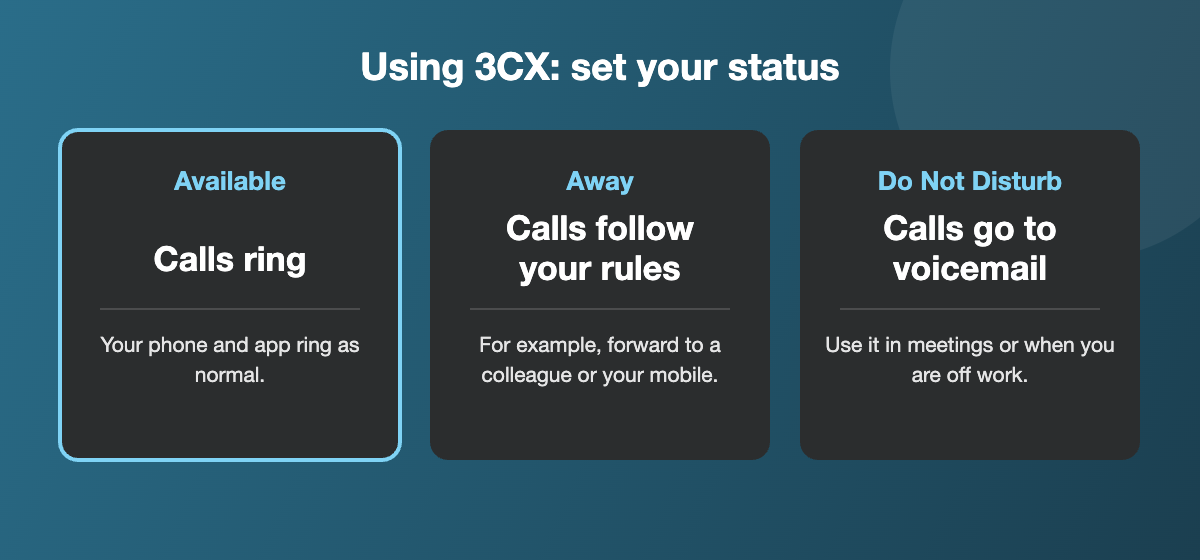
Set your status
Your status tells the phone system what to do with your calls. Set it to Available when you are working, Away when you step out, and Do Not Disturb in meetings. Each status can follow its own forwarding rules, for example sending calls to a colleague or to voicemail.
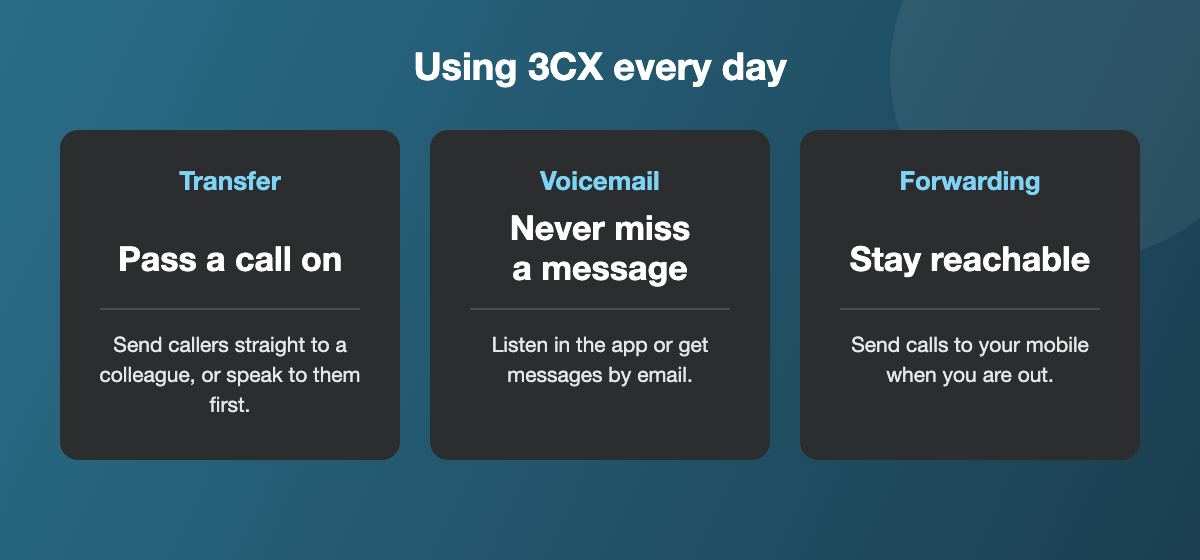
Everyday call features
- Transfer a call straight to a colleague, or speak to them first before you hand the caller over.
- Hold and resume callers while you check something.
- Voicemail can be played in the app or sent to your email.
- Call history shows who called, so you can call back with one tap.
- Forward calls to your mobile when you are away from your desk.
Tips for using 3CX on the go
- Allow notifications. When using 3CX on your mobile, the app needs notification permission to ring when it is closed.
- Android users: turn off battery optimisation for the app, so your phone does not put it to sleep and miss calls.
- Check Do Not Disturb on your phone as well as your status in the app. Either one can stop calls ringing.
- Use a headset for long calls. The sound is clearer for you and the caller.
- Wi-Fi or mobile data both work. A strong Wi-Fi connection usually gives the best sound.
Using 3CX on a new phone? Ask us for a fresh QR code, scan it in the app, and you are ready to go. Your old phone stops receiving calls once you remove the app.
For every feature, see the official 3CX user manual linked above. For a mobile app alternative, see our Groundwire guide.
Using 3CX questions
Contact us and we will resend it, or send a new QR code if you have changed phones.
Yes. Your extension can ring on your desk phone, the app and the web client at the same time, so you can answer wherever you are.
Check your status. Do Not Disturb, or a forwarding rule on your Away status, can send calls to voicemail. Set your status to Available and try again.
You can record a new greeting from the app or your desk phone. For a professionally recorded greeting, see our voice talent samples.
Related: Cloud PBX phone system · All phone system guides · Voice and on-hold music samples
Need a hand? Contact us and we will help.