
Using Nextcloud is easy. Just install and set up the desktop app, and that’s it!
This quick configuration guide connects the Nextcloud desktop app to your KJHosting cloud storage in four short steps.
If you haven’t already, download the desktop app for your computer. Then come back here and follow the four steps below.
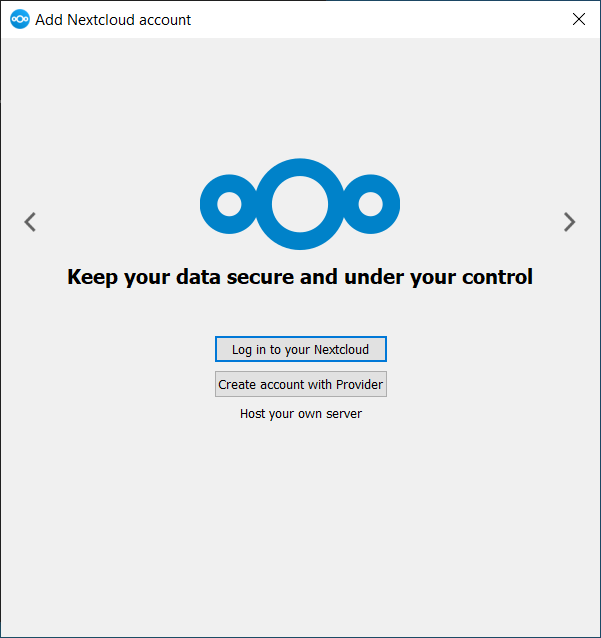
1. Install and open the app
Run the installer for the Nextcloud desktop app.
When the app opens, click Log in to your Nextcloud.
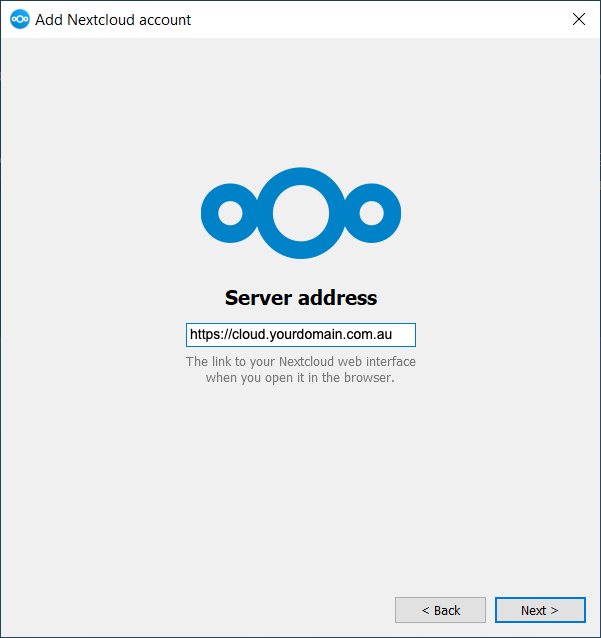
2. Enter your server address
Enter the server address supplied by KJHosting, for example https://cloud.yourdomain.com.au (with your own domain name), then click Next.
This is the same address you use to open your Nextcloud in a web browser.
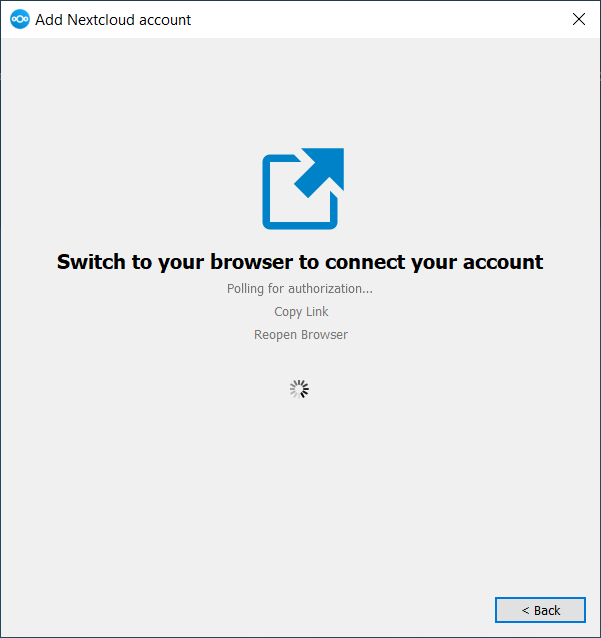
3. Log in through your browser
Your web browser opens your Nextcloud login page. Log in with the username and password supplied by KJHosting, then click Grant access.
Then switch back to the Nextcloud app. If the browser did not open, click Reopen Browser in the app.
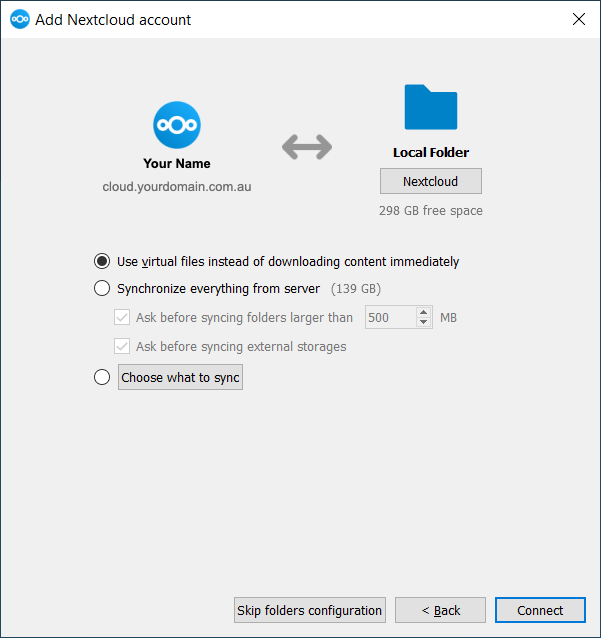
4. Choose how to sync
Use virtual files (recommended): all your files show in your Nextcloud folder, but each one only downloads when you open it. This saves space on your computer.
Or choose Synchronize everything from server, or Choose what to sync to pick folders. You can also change the local folder. Then click Connect.
You are done!
A Nextcloud folder now appears on your computer, and the Nextcloud icon in your taskbar or menu bar shows your sync status. You can change the settings at any time. See our detailed configuration guide for more options.
Screenshots: Nextcloud documentation, © Nextcloud GmbH and contributors, CC BY 3.0, adapted by KJHosting.
After your quick configuration
Once the app is connected, your Nextcloud folder appears in File Explorer on Windows or Finder on a Mac, and the Nextcloud icon sits in your taskbar or menu bar. Here is what to look for:
- A green tick on the Nextcloud icon means everything is in sync.
- Blue arrows mean files are still uploading or downloading. Leave your computer on until they finish.
- A warning sign means something needs your attention. Click the icon to see which file and why.
- Files with “conflicted copy” in the name appear when the same file was changed in two places at once. Open both, keep the right version and delete the other.
Quick tips
- Want to save space on your computer? Use virtual files, so files only download when you open them.
- Only need some folders? Choose which folders to sync in the app settings, as shown in our detailed configuration guide.
- Need the app on another computer? Download it again and repeat the quick configuration with the same login.
The official Nextcloud download page also lists the mobile apps for iPhone and Android.
Quick configuration questions
Use the address supplied by KJHosting, usually cloud. followed by your own domain name. It is the same address you use to open Nextcloud in your web browser.
Yes. The app runs quietly in the background and syncs your files whenever your computer is on and connected to the internet.
Yes. Install the app on each computer and complete the quick configuration with the same username and password. Your files stay in sync across all of them.
Check the server address for typos, make sure you can log in through your web browser, then try again. If it still fails, start a Remote Assistance session and we will help.
Related: Nextcloud desktop app manual · Cloud storage · All cloud storage guides
Need a hand? Contact us and we will help.