
Nextcloud
For complete instructions on using the Nextcloud desktop app, click below
This detailed guide covers the Nextcloud desktop apps settings you are most likely to use, once your account is connected.
Nextcloud’s manual covers everything the desktop app can do: virtual files, choosing which folders to sync, sharing files from your computer, sync settings and fixing sync problems.
Note: you will be leaving the KJHosting website. Come back here for help with your own setup.
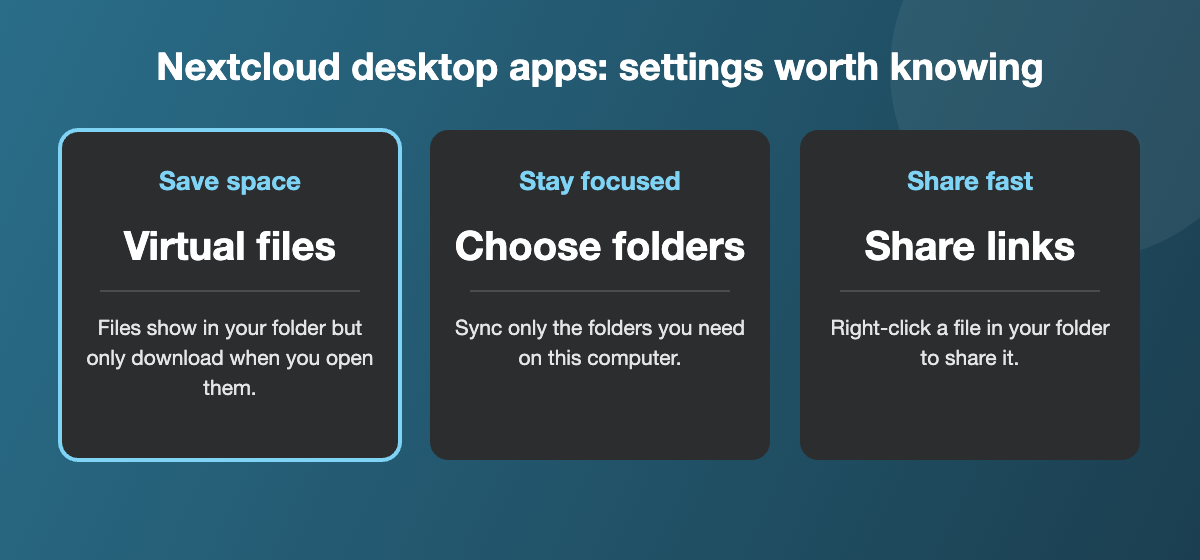
Desktop apps settings in detail
Open the settings by clicking the Nextcloud icon in your taskbar or menu bar, then choosing Settings. The names below may differ slightly between versions of the desktop apps.
Save space with virtual files
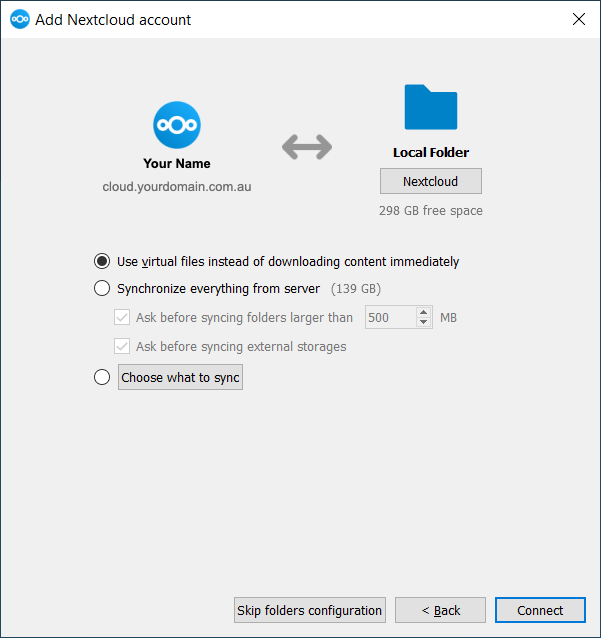
With virtual files turned on, every file appears in your Nextcloud folder, but it only downloads when you open it. Right-click a file or folder to keep it on your computer permanently, or to free up space again. This is ideal for laptops with small drives.
Choose which folders to sync
In your account settings, choose which folders sync to this computer. Leave out large folders you rarely need on this machine. They stay safe in the cloud and you can still open them in your web browser.
Share files from your computer
Right-click any file in your Nextcloud folder and use the Nextcloud menu to create a share link or share with a colleague. You can add a password or an expiry date to the link.
Fix sync problems
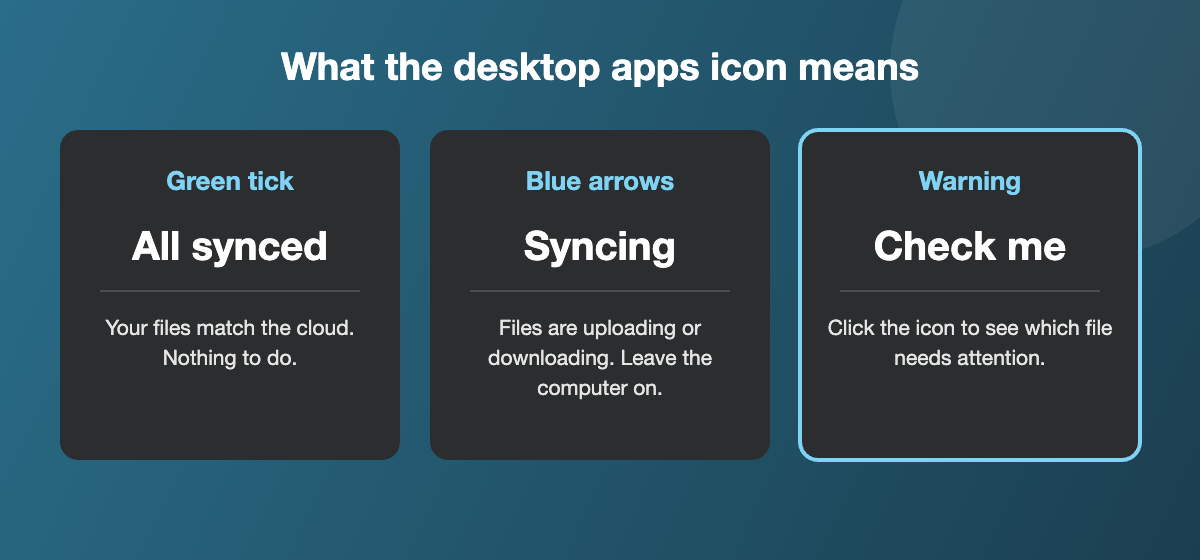
- Click the Nextcloud icon to see recent activity and any files that did not sync.
- Files with odd characters in their names, or very long paths, sometimes fail to sync. Rename them and the desktop apps will try again.
- If the same file was changed in two places, you will see a “conflicted copy”. Keep the version you want and delete the other.
For every setting, see the Nextcloud manual linked above, or the official Nextcloud download page for the latest versions of the desktop apps.
Common tasks
- Pause syncing. Click the Nextcloud icon and pause sync while you are on a slow or mobile connection, then resume when you are back on Wi-Fi.
- Add a second account. If you use more than one Nextcloud, for example for two businesses, add another account in the settings. Each account gets its own folder.
- Move your Nextcloud folder. To keep files on a different drive, remove the folder sync connection, then add it again and choose the new location. Your files download again to the new place.
- Start automatically. Turn on the option to launch the app when your computer starts, so your files always stay up to date.
- Moving to a new computer? Install the desktop apps on the new machine and log in. Your files download from the cloud, so there is nothing to copy across by hand.
Not sure which setting you need? Tell us what you are trying to do and we will point you in the right direction.
Desktop apps questions
Windows, macOS and Linux. Download the right version from our desktop app download guide.
No. Updates keep your account and settings. If you are ever asked to log in again, use the same server address, username and password.
Yes. In the network settings you can set upload and download limits, which helps on a slow or shared connection.
Follow our quick configuration guide first, then come back here to fine-tune your settings.
Related: Quick setup guide · Cloud storage · All cloud storage guides
Need a hand? Contact us and we will help.